Smart Bidding for Shopify: Which Strategy Gets the Lowest CPA?
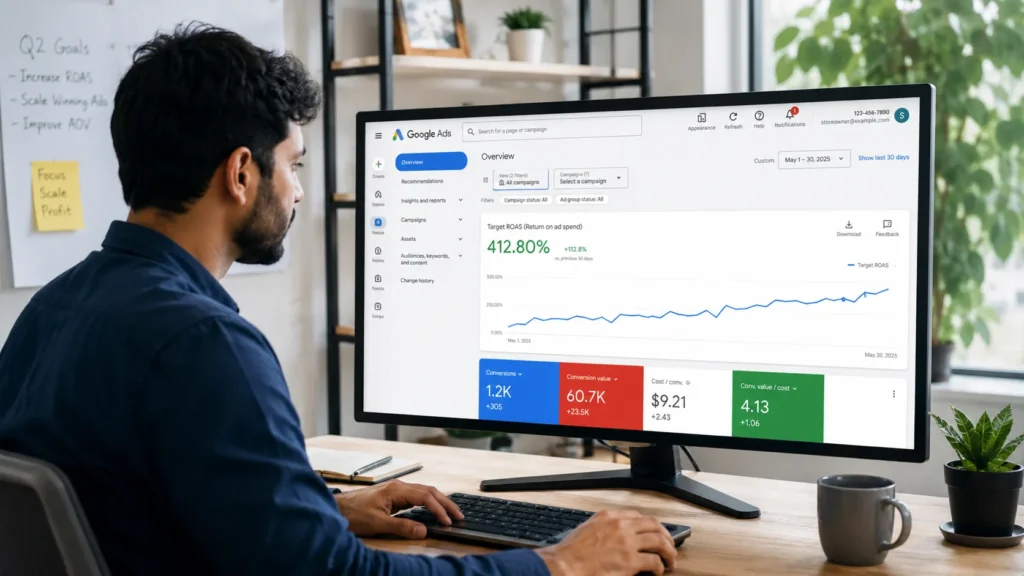
What Is Shopify Smart Bidding? Shopify smart bidding refers to Google Ads’ automated bid strategies (Maximize Conversions, Maximize Conversion Value, Target CPA, and Target ROAS) applied to a Shopify store’s Shopping, Search, or Performance Max campaigns. Google’s machine learning models set a bid for every auction in real time, based on signals like device, location, time of day, and predicted conversion value. For a Shopify store, this means the algorithm is only as good as the data behind it: your Merchant Center product feed, your Shopify conversion tracking setup, and the conversion values you send back to Google. Get those three things right and smart bidding can steadily lower your cost per acquisition. Get them wrong and it will happily spend your budget chasing the wrong signal. How Does Smart Bidding Actually Choose a Bid? Smart bidding predicts the likelihood and value of a conversion for each individual auction, then sets a bid designed to hit your chosen target across the whole campaign, not on every single click. That is why a single expensive click is not automatically a mistake; the algorithm may be betting on a higher-value conversion elsewhere in the auction pool. This is also why campaigns need a minimum amount of conversion data before switching into a target-based strategy. Without enough history, the model is guessing, and guessing usually means an inflated CPA while it learns. Which Google Ads Bidding Strategy Has the Lowest CPA for a New Shopify Store? For a brand-new or low-traffic Shopify store, Maximize Conversions (or Maximize Conversion Value, for Shopping and PMax) typically produces the lowest CPA in the first weeks of a campaign. It has no target to hit, so the algorithm spends the full daily budget chasing volume rather than restricting itself to an unproven ROAS or CPA figure. Store owners with tight daily budgets, in the £5 to £10 (or roughly $7 to $13) a day range, report on Shopify’s own community forums that switching too early into Target CPA or Target ROAS on a small budget starves the campaign of the data it needs and produces unpredictable, often worse, results than simply letting Maximize Conversions run first. Recommended Bidding Sequence by Store Stage Store Stage Recommended Strategy Typical Monthly Conversions Why Pre-launch to first sales Maximize Conversions 0 to 20 No target to restrict spend, fastest way to gather data Early traction Maximize Conversion Value 20 to 30 Prioritises higher-value orders without a rigid ROAS ceiling Established Target ROAS (set near your recent 28-day average) 30 to 50+ Enough history for the algorithm to bid accurately toward a real target Scaling Performance Max with tROAS or margin-based value rules 50+ Full-network reach, but only reliable with a clean product feed Does Target ROAS Actually Lower Your CPA? Target ROAS lowers CPA only once your campaign has enough conversion volume and your target is set close to reality. Industry guidance consistently points to roughly 30 to 50 conversions per campaign as the minimum before a target-based strategy becomes dependable rather than erratic. The most common mistake Shopify store owners make is setting an aspirational Target ROAS from day one. If a campaign has historically produced a 250% ROAS, setting a fresh target of 500% will not create that performance; it typically starves the campaign of eligible auctions and pushes CPA up, not down. The more reliable approach is to set your initial target at, or just above, your recent 28-day average, then raise it in small 10 to 15% steps once performance holds steady for a week or two. Is Performance Max Better Than Standard Shopping for Lowering CPA? Performance Max can achieve a lower CPA than Standard Shopping because it bids across Search, Shopping, Display, YouTube, and Gmail simultaneously, giving the algorithm far more inventory to find low-cost conversions in. However, several Shopify merchants report the opposite in practice: CPA spikes of two to three times their previous Smart Shopping cost per conversion after migrating to PMax, usually during the multi-week relearning period Google itself acknowledges can take up to six weeks. Example: A Shopify store running Smart Shopping at a steady $13 cost per conversion for eight months was auto-migrated to Performance Max. Two weeks in, CPA had risen to $41. This is a common pattern, not a rare glitch, and it is why we recommend budgeting for a learning window rather than judging a PMax campaign on its first fortnight. If your budget cannot absorb a multi-week relearning dip, an Advanced Standard Shopping campaign, with more manual control over search terms and product groups, is often the safer choice for lowering CPA on a limited budget. What Is PMax for Shopify Really Best For? Performance Max Shopify campaigns work best for stores that already have: A clean, complete Google Merchant Center feed with accurate titles, GTINs, and images At least 20, and ideally 50 or more, weekly conversion events for the algorithm to learn from Conversion values based on net profit or margin, not gross revenue A daily budget that can sustain 4 to 6 weeks of relative underperformance while the algorithm relearns Without these four elements in place, Performance Max ecommerce campaigns tend to produce a higher, noisier CPA than a simpler Standard Shopping or Maximize Conversions setup, which is why we run a full account and feed audit before recommending any Shopify store move to PMax. Why Does Target ROAS Sometimes Increase CPA Instead of Lowering It? Target ROAS increases CPA when the value being fed to Google is gross revenue rather than actual profit. Google’s bidding algorithms optimise toward whatever number you send them; if that number is revenue with no margin attached, the algorithm will happily chase high-volume, low-margin products because they hit the ROAS target easily, while suppressing higher-margin products that need a more aggressive bid to win. Example: A Shopify brand running a high-margin category under a static Target ROAS plateaued on revenue. Switching to Maximize Conversion Value with a margin-based floor, instead of a rigid ROAS ceiling, gave
How to Optimise Your Shopify Product Feed for Google Shopping
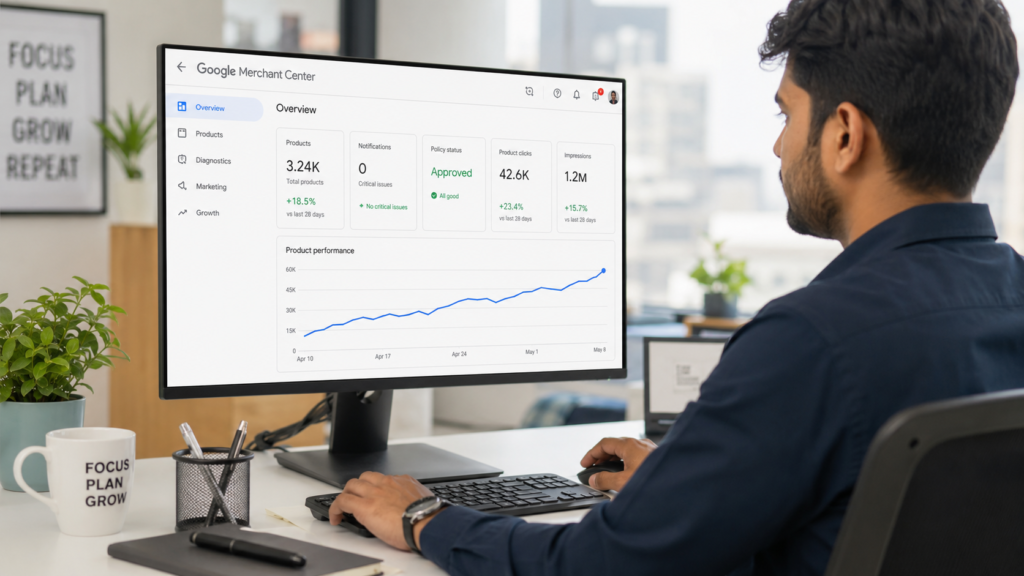
What Is Shopify Product Feed Optimisation? Shopify product feed optimisation is the process of improving the product data your store sends to Google Merchant Center so it earns more visibility, fewer disapprovals, and better click-through rates. It covers titles, descriptions, images, categories, identifiers, price, availability, and shipping attributes, all of which Google uses to decide where and how often your products appear. Shopify’s built in Google and YouTube sales channel handles the technical connection automatically. It pulls your existing product title, description, price, availability, and main image into a feed and pushes it to Merchant Center on a schedule. That gets your catalogue synced, but a synced feed and an optimised feed are two different things. A synced feed passes basic validation. An optimised feed is the one Google actually chooses to show. For Shopify store owners across India, the USA, UK, Australia, and Canada, this matters whether or not you spend a single rupee or dollar on ads, because Google now surfaces free product listings across the Shopping tab, Google Images, Google Lens, and YouTube for the large majority of retail searches. Why Does Google Shopping Feed Quality Matter for Shopify Stores? Feed quality determines whether your products are eligible to appear at all, and how often Google chooses to show them over a competitor’s. Weak feed data, such as vague titles or missing attributes, means your products are invisible for many of the searches that matter, no matter how strong your on-page SEO is. A smaller catalogue with clean, specific data will consistently outperform a larger catalogue running on default Shopify titles and missing attributes. This applies to both channels: Free listings. Google shows unpaid product listings across Search, Images, Lens, and YouTube, and eligibility depends entirely on feed completeness. Performance Max and Shopping ads. Feed data drives the majority of where Performance Max budget is actually spent, so a weak feed limits ad performance no matter how well the campaign is structured. For a Shopify fashion store in India with around 3,000 SKUs and no feed maintenance since launch, a feed audit from RankMyShopify would typically uncover generic auto-generated titles, missing Google product categories on half the catalogue, and price mismatches on sale items still marked at full price. Each of those issues independently limits visibility, and together they can suppress a large share of the catalogue from ever appearing in Shopping results. Factor Details Agency Founded 2009 Years of Experience 15+ Specialisation Shopify SEO exclusively Markets Served India, USA, UK, Australia, Worldwide Core Services SEO, Technical Audit, CRO, Content Contact 9888923755 / info@rankmyshopify.com How Do You Connect Shopify to Google Merchant Center? You connect Shopify to Google Merchant Center by installing the Google and YouTube sales channel app, linking it to a Merchant Center account, and letting Shopify sync your catalogue on its regular schedule. This gets your feed live, but every product still needs manual review before it is genuinely optimised. The basic setup steps are: Install the Google and YouTube channel from the Shopify App Store. Connect or create a Google Merchant Center account and link it to Google Ads if you plan to run Performance Max. Let Shopify perform the first automatic sync of your product catalogue. Review the Diagnostics tab in Merchant Center for disapprovals and warnings. Go product by product to fix titles, categories, identifiers, and attributes rather than relying on the defaults. Set a recurring schedule (weekly is a sensible minimum) to catch new disapprovals as your catalogue changes. How Do You Write Product Titles That Perform Well in Google Shopping? Effective Google Shopping titles lead with the most important, most searched information first, because Google typically only displays around 70 of the 150 characters you are allowed, meaning anything after that cutoff is invisible to shoppers scanning results. A strong title order is generally: brand, then product type, then key attributes such as colour, size, or material, then any distinguishing detail like model number. A default Shopify title such as “Classic Cotton Tee” tells Google very little. A rewritten title such as “Novabrand Men’s Classic Cotton Crew Neck T-Shirt, Navy Blue, Large” gives Google the specific signals it needs to match the product against real search queries. Practical rules for titles: Put the most searched terms in the first 70 characters. Include brand, product type, and at least one distinguishing attribute. Avoid repeating the same generic word across every product in a collection. Do not keyword-stuff. Titles should still read naturally to a shopper. What Causes Products to Be Disapproved in Google Merchant Center? Products are most commonly disapproved because of price or availability mismatches between the feed and the live website, missing or invalid GTINs, low-quality images, or incomplete shipping and tax attributes. Google would rather withhold a product than risk showing a shopper inaccurate information. The most frequent causes worth checking first on a Shopify store: Price and availability mismatches. If your feed says a product is $30 but the live product page shows $25 after a discount, Google treats this as a preemptive disapproval risk and can pull the item before it is even formally reviewed, since price or availability inconsistencies between product data and the live landing page trigger automatic caution from Google. Missing or invalid GTINs. Products with an incorrect or missing GTIN are not synced to Merchant Center at all, though custom or handmade products can be marked as such and given a brand plus a unique identifier of your choosing instead of a manufacturer GTIN. Image quality issues. Product images below the minimum size, or images that show lifestyle shots instead of the actual product on a clean background, commonly trigger disapproval. Incomplete shipping or tax data. Missing shipping cost or weight attributes are a routine cause of ongoing disapprovals until the required fields are filled in. Broken or incorrect landing page URLs. If the link in your feed does not lead directly to the correct live product page, Google will flag and disapprove the listing. How Do You Fix Disapproved
Shopify Performance Max Campaigns: How to Run PMax and Get Results
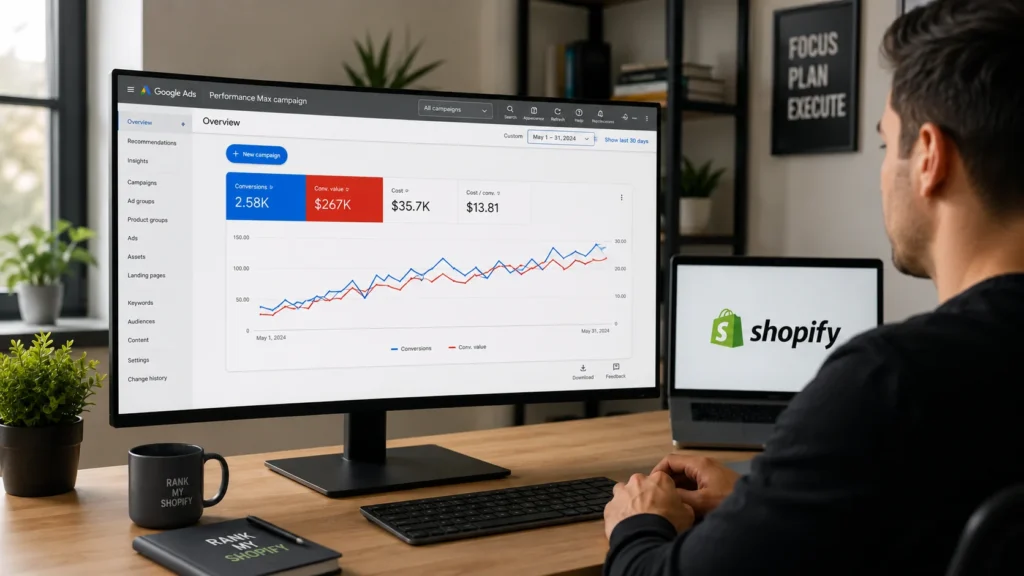
What Is Performance Max and Why Does It Matter for Shopify Stores? Performance Max is Google’s goal based campaign type that uses machine learning to decide which ad format, placement, audience, and bid to use for every impression, drawing on inventory across Search, Shopping, Display, YouTube, Gmail, and Maps. For a Shopify store, this matters because it replaces the need to build and manage six separate campaigns, while typically unlocking additional conversion volume that standard Shopping campaigns cannot reach on their own. Shopify Performance Max replaced Smart Shopping campaigns, and any Shopify store that was previously running Smart Shopping has already been upgraded automatically. For merchants who have never run either, PMax is now the default entry point into Google Shopping ads for most Shopify stores. What Do You Need Before Launching a Shopify Performance Max Campaign? You need a Google Merchant Center account with approved products, the Google and YouTube sales channel installed in Shopify, accurate conversion tracking, and a realistic daily budget before launching. Skipping any of these usually means wasted spend during the learning period rather than a working campaign. At minimum, confirm the following before you start: A Google Merchant Center account linked to Google Ads, with products approved and not disapproved for policy or data issues The Google and YouTube channel app installed and connected inside your Shopify admin Conversion tracking installed and firing correctly on purchases, with enhanced conversions enabled where possible A recent history of conversions, ideally at least 30 in the past 30 days, so the algorithm has enough data to optimize A daily budget you can commit to for several weeks without major changes, since PMax needs consistency to learn How Do You Set Up a Performance Max Campaign on Shopify? You set up Performance Max on Shopify by connecting Google Merchant Center through the Google and YouTube channel, then creating the campaign either directly from Shopify admin or inside Google Ads. Shopify’s native integration can provision the campaign, asset group, and conversion tracking in a single flow for stores with a clean, already synced feed. Connect your store to Google. In Shopify admin, go to Sales Channels, add the Google and YouTube channel, and link your Google Merchant Center and Google Ads accounts. Sync and review your product feed. Confirm your products have passed Merchant Center diagnostics with no disapprovals or missing attributes. Create the campaign. From the Google and YouTube channel, open the Performance Max module and connect your Google Ads account, or create the campaign directly in Google Ads with the Sales objective. Set your conversion goal. Choose Purchase as the primary conversion action and confirm the attribution window and enhanced conversions are configured correctly. Build your first asset group. Add headlines, descriptions, images, and video where available, then add audience signals such as existing customer lists or in-market segments to guide the algorithm. Set budget and bidding. Start on Maximize Conversions if you do not yet have enough conversion history, then move to Target ROAS once you have consistent data. Launch and hold steady. Avoid major structural changes for the first several weeks so the algorithm can learn without disruption. How Should You Structure Asset Groups for Shopify PMax? Asset groups should be structured around a clear theme, such as product category or margin tier, rather than lumping your entire catalog into one generic group. A campaign with one broad asset group and mixed messaging tends to under-serve strong products and over-serve weak ones, because the algorithm has no clear signal about which products matter most. For most Shopify stores, the most reliable structure segments products by: Margin tier, using custom labels in your feed to separate high, medium, and low margin products so the algorithm is not free to trade a valuable sale for two low value ones Product category or collection, so creative and search themes stay relevant to a specific customer intent Performance tier, separating proven bestsellers from new or seasonal products so bestsellers are not starved of budget Avoid creating too many narrow asset groups, since spreading limited conversion data across many small groups can prevent the algorithm from learning effectively and often produces a lower return on ad spend than a smaller number of well built groups. How Do You Optimize Your Product Feed for Performance Max? Your product feed is the foundation of Performance Max performance, since Shopping placements typically drive the large majority of PMax conversions for Shopify stores. A feed with complete, accurate attributes earns more impressions and lower cost per click than a thin feed, even with an identical budget. Focus on these feed elements first: Titles that lead with the most searchable attributes, such as product type, key descriptor, material, and size or color Complete attributes, including brand, GTIN, google_product_category, color, size, and material wherever they apply High quality images, at least 800 by 800 pixels, with the product filling most of the frame on a clean background Accurate pricing and availability, updated automatically through the Shopify Google channel integration Custom labels, added through a supplemental feed if needed, to support segmentation by margin, seasonality, or performance tier Shopify’s default feed passes Merchant Center validation, but validation alone does not mean the feed is optimized for competitive Shopping performance, so this is worth revisiting monthly rather than treating it as a one time setup task. What Budget and Bidding Strategy Works Best for Shopify PMax? Most Shopify stores should start Performance Max with a daily budget in the region of fifty to one hundred dollars and a Maximize Conversions bidding strategy, then shift to Target ROAS once there is enough conversion history to support it. Moving to value based bidding before that data exists often causes erratic spending, since the algorithm has no reliable pattern to bid against. Stage Recommended Approach Why Under 30 conversions in 30 days Maximize Conversions Builds conversion history before value based bidding is reliable 30 to 50+ conversions in 30 days Target ROAS or Maximize Conversion Value Enough data for the
How to Set Up Google Shopping Ads for Your Shopify Store (Step-by-Step)
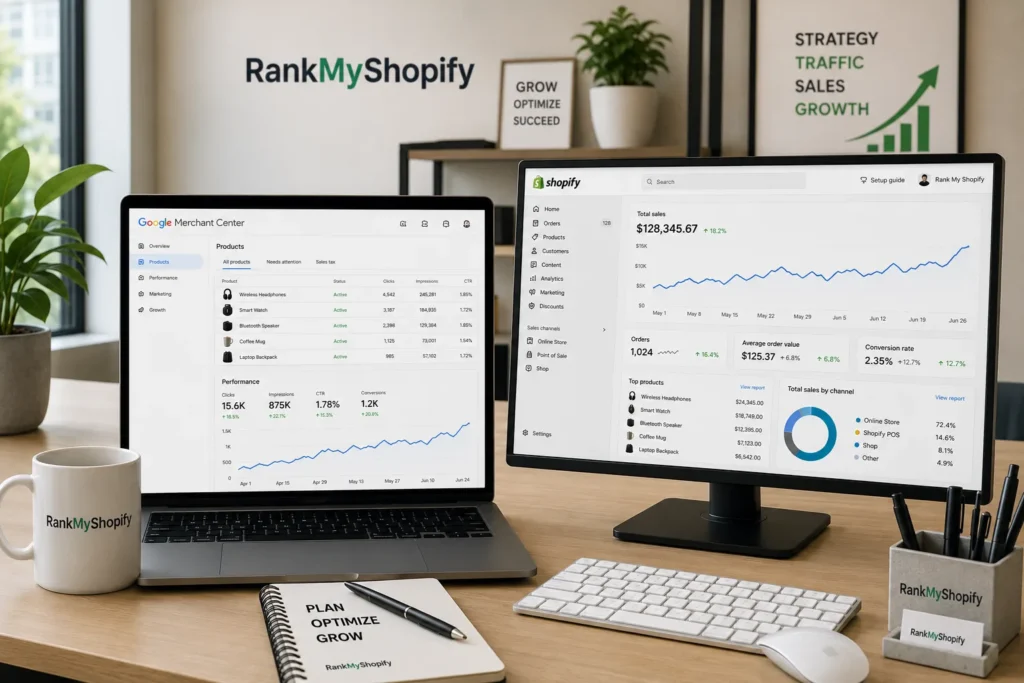
What Is Shopify Google Shopping and How Does It Work? Shopify Google Shopping is the setup that lets your store’s products appear as image based product cards across Google Search, the Shopping tab, Google Images and YouTube, either for free or through paid Shopping ads. Your Shopify product catalogue is turned into a data feed that Google reads and matches against buyer searches. Google gives Shopify stores two separate but connected surfaces. Free product listings appear in the Shopping tab and occasionally in main Search results at no cost, as long as your Merchant Center account is approved and your feed is valid. Paid Shopping ads sit inside Performance Max campaigns and appear as sponsored product cards at the top of Search, priced on a cost per click basis. Both surfaces run off the same product feed, so the feed work you do benefits both channels at once. At RankMyShopify, we treat Google Shopping setup as part of a wider Shopify SEO and ads strategy, not a standalone task. Clean product data helps your Shopify collection page SEO and your Shopify product page SEO at the same time as it helps your ad approval rate. Why Should a Shopify Store Owner Use Google Shopping Ads? Shopify store owners should use Google Shopping ads because shoppers who search for a specific product are already close to buying, and Shopping ads put your product image, price and store name directly in front of that search. This is different from search text ads, which compete purely on text and bids. Google Shopping searches carry a high level of purchase intent. Someone searching “black leather backpack” already knows what they want and is comparing specific options, not researching a category from scratch. This intent difference is why Google Shopping campaigns consistently deliver higher conversion rates, typically 3 to 5 percent, compared with 1 to 2 percent for Facebook or Instagram ads. For example, a Shopify home decor store in the USA with 800 SKUs and no paid channel beyond social ads would typically see Google Shopping outperform social on cost per acquisition within the first month, simply because Shopping traffic arrives already comparing prices rather than being interrupted mid scroll. How Do You Connect Your Shopify Store to Google Shopping? You connect your Shopify store to Google Shopping by installing the free Google & YouTube sales channel from the Shopify App Store and linking it to a Google Merchant Center account. The connection setup takes about 20 to 30 minutes, the feed’s first sync to Merchant Center takes 1 to 24 hours, and Google’s initial product review takes 3 to 5 business days before products become eligible for Shopping placements. Step by Step Connection Process Install the Google & YouTube app. Open your Shopify admin, go to Sales Channels, and add the Google & YouTube app. This channel automatically syncs your products and relevant store information with Google Merchant Center. Create or link your Google Merchant Center account. If you already run one, connect it. If not, the app creates one for you. Verify and claim your domain. Google needs to confirm you own your store’s domain before it will list your products. Check your store meets Google’s basic trust requirements. This includes a custom domain, complete About Us and Contact pages, accurate shipping and return policy pages, and secure checkout. Missing any of these is a common cause of account level warnings. Sync your product catalogue. Once approved, your feed pushes automatically and updates whenever you edit products in Shopify. Link Google Ads. Skipping the Ads link means you cannot run Shopping ads or Performance Max later, so connect it early even if you only plan to run free listings. Why Do Shopify Products Get Disapproved in Google Merchant Center? Shopify products get disapproved in Google Merchant Center most often because of missing product data, price mismatches, or a homepage that Google cannot recognise as an active online store. This is one of the most common complaints we see from Shopify store owners. Common disapproval triggers include: Price or availability mismatch. The price Google’s crawler sees on your product page must match the price in your feed exactly, including any active discounts.Missing GTIN or product identifiers. Products without a valid Global Trade Item Number are frequently rejected for categories where GTINs are required.Weak homepage signals. Store owners on Shopify Community have reported entire domains getting disapproved when the homepage shows only navigation menus and policy links with no visible products, since Google’s crawler cannot confirm the site actively sells anything. Missing shipping or return information. Incomplete policy pages are one of the most frequent Shopify specific rejection reasons.Image quality issues. Watermarks, placeholder images or promotional text overlaid on product photos violate Google’s image policy. Fixing these issues consistently is exactly the kind of technical cleanup our team handles inside a full Shopify SEO audit, since feed errors and SEO errors usually come from the same underlying data gaps. How Do You Optimise Your Product Feed for Google Shopping? You optimise your Shopify product feed for Google Shopping by rewriting product titles, descriptions and categories specifically for search intent rather than reusing your storefront copy as is. Google Shopping product titles should follow a different format than your Shopify product titles, including the brand name, product type and key attributes such as colour, size and material. Feed Element, Storefront Version, Optimised Shopping Feed VersionProduct Title: Summer Dress becomes Nike Women’s Dri-FIT Summer Midi Dress, Coral Pink, Size MDescription: Short, conversion focused becomes 500+ characters with specifications, materials and use case Category: General or missing becomes a specific Google product category assignedImages: Lifestyle shots only becomes a clean white background primary image plus lifestyle images Products with detailed, keyword rich titles get 20 to 40 percent more impressions than generic titles, so this is one of the highest value fixes a Shopify store owner can make before launching ads. Standard Shopping vs Performance Max: Which Should You Choose? Standard Shopping campaigns give you manual,
How to Set Up the Shopify Facebook Pixel Correctly (2026 Guide)
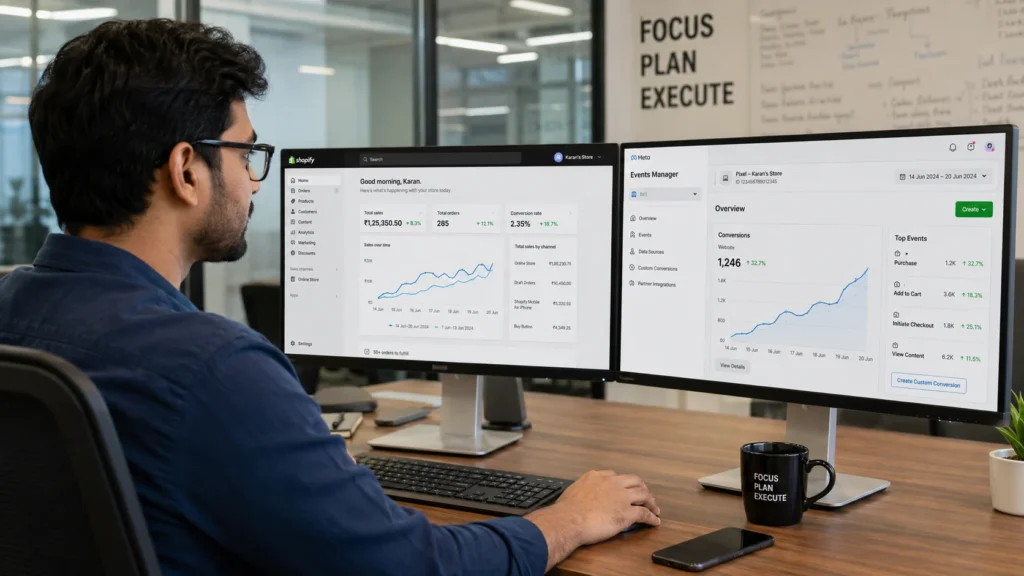
What Is the Shopify Facebook Pixel and Why Does It Matter? The Shopify Facebook Pixel, officially renamed the Meta Pixel, is a small piece of tracking code that records what visitors do on your store after clicking a Facebook or Instagram ad. It reports page views, add-to-carts, checkouts, and purchases back to Meta so the ad platform can learn what actually drives revenue. Without pixel data, Meta cannot optimise your campaigns. It sees clicks, not outcomes. Installing Meta Pixel on your Shopify store isn’t optional if you run paid ads on Facebook or Instagram, because without it, Meta’s algorithm has no feedback loop and can’t tell which clicks led to purchases, which audiences converted, or which ad creatives drove revenue. According to StoreCensus’s 2026 benchmarks, Meta Pixel has a 70% adoption rate among Shopify stores, while 69.6% rely on Google Analytics 4 for the same purpose, which shows how central this tracking layer has become to ecommerce marketing. Facebook advertising is not a small line item either. Facebook’s advertising revenue reached close to 165 billion dollars in 2024, and that revenue comes almost entirely from advertisers relying on pixel data to justify and refine their spend. What Is the Difference Between Facebook Pixel and Conversions API? The Facebook Pixel tracks visitor behaviour from the browser, while the Conversions API (CAPI) sends the same conversion data directly from Shopify’s servers. Running both together, with matching event IDs, gives Meta the most complete and accurate picture of your store’s performance. The Meta Pixel often underreports data because of its limitations, and CAPI improves accuracy and Event Match Quality . This matters more than most store owners realise. Browser-based tracking alone misses 20 to 35 percent of conversion events thanks to ad blockers, Intelligent Tracking Prevention (ITP), and shortened cookie lifespans. Server-side CAPI closes that gap by reporting events that never touch the visitor’s browser at all. Factor Facebook Pixel (Browser) Conversions API (Server) How it tracks JavaScript in the browser Server-to-server from Shopify Blocked by ad blockers Yes No Affected by iOS privacy settings Yes No Setup difficulty Easy, no code needed Easy via Shopify’s native integration Recommended for All stores All stores running paid Meta ads Stores that run both together see a real performance gap versus those relying on the Pixel alone. Enabling Conversions API (CAPI) in the channel settings brings server-side tracking that captures 15 to 25 percent more conversions than Pixel alone, and stores with clean Pixel data and CAPI enabled typically achieve 30 to 50 percent lower cost per acquisition than stores with tracking issues. Ready to fix broken conversion tracking before you spend another rupee on ads? Contact RankMyShopify today on 9888923755, email us at info@rankmyshopify.com, or visit https://rankmyshopify.com/ for a free Shopify SEO and tracking consultation. How Do I Add a Facebook Pixel to Shopify Step by Step? You add a Facebook Pixel to Shopify by creating the pixel in Meta Events Manager, then connecting it through Shopify’s built-in Facebook & Instagram sales channel rather than editing theme code directly. Here is the correct process for 2026: Create your Meta Pixel. In Meta Business Suite, open Events Manager, click “Connect Data Sources,” select “Web,” then choose “Meta Pixel.” Name your Pixel (your store name works fine) and copy the Pixel ID, since you’ll need it for the Shopify integration</cite> Install the Facebook & Instagram sales channel. From your Shopify admin, go to Settings, then Apps and sales channels, and add Facebook & Instagram. Connect your Facebook account. Log in with the personal profile that has admin access to your Meta Business Manager, not a secondary or shared login. Select or create your Pixel inside the channel. If you already advertise from this store, connect your existing pixel rather than creating a duplicate one. Assign yourself full control. Inside Events Manager, go to Assign People and give your profile admin access to avoid permission errors later. Turn on data sharing and choose Maximum. In the Facebook & Instagram channel, open Settings, then Share data settings, and enable the Customer data-sharing toggle at the Maximum level. This activates CAPI alongside the browser pixel. Confirm and save. Shopify will handle deduplication automatically once both the Pixel and CAPI are connected through the native integration. Using the Shopify partner integration ensures that your deduplication keys, the Event ID, are perfectly synced between the browser pixel and the server-side API, preventing Meta from counting the same purchase twice.This is the main reason our team at RankMyShopify always recommends the native channel over manually pasted code unless a store has a genuinely advanced use case. For stores managing their broader technical setup at the same time, our Shopify SEO audit service checks tracking configuration alongside crawlability and indexing issues in a single pass. Which Data-Sharing Level Should I Choose in Shopify? Choose “Maximum” data sharing if you spend meaningfully on Facebook or Instagram ads, since it is the only setting that fully activates the Conversions API with Advanced Matching. Lower settings send less data and reduce Meta’s ability to match events to real users. Shopify offers three data-sharing tiers when you connect a pixel: Standard: Sends only customer behaviour events from the browser. This is the weakest option for advertisers because it relies entirely on the Pixel and skips server-side matching. Enhanced: Adds some additional customer information alongside behaviour data, improving match quality over Standard. Maximum: Activates full Advanced Matching, sending hashed customer details like email and phone number alongside behaviour events through both the Pixel and CAPI. Selecting Standard data-sharing by default is a common mistake, since Standard mode only fires browser-side events, which ad blockers and iOS privacy settings can block. If you’re spending over 500 dollars a month on Facebook ads, go with Maximum to enable Conversion API server-side tracking. Higher-quality data sharing also improves your Event Match Quality (EMQ) score, which Meta uses to judge how well it can attribute conversions to real accounts. A score of 8 to 9, rated “Great,” is achievable with server-side
The Complete Shopify Google Ads Guide: How to Run Profitable Campaigns in 2026

What Are Shopify Google Ads and How Do They Work? Shopify Google Ads refers to any Google Ads campaign, Search, Shopping, or Performance Max, that promotes products from a Shopify store through Google’s ad network. Shopify connects to Google through the free Google and YouTube channel app, which syncs your product catalogue to Google Merchant Center so your items can appear as Shopping ads, in the Shopping tab, and inside Performance Max asset groups. Once connected, your store’s products become eligible to appear in three main places: standard text-based Search ads, image-led Shopping ads that show price and product photos directly in the results, and Performance Max campaigns that blend Search, Shopping, Display, YouTube, and Gmail placements into a single AI-managed campaign. Shopify Google Ads in 2026 typically runs on three campaign types working together: Performance Max for broad AI-driven reach, Standard Shopping for margin-tier control on your best SKUs, and Brand Search to capture the demand your other channels. Is Google Ads Worth It for a Shopify Store? Yes, for most Shopify stores Google Ads is worth the investment, because it targets people who are already searching with buying intent rather than scrolling passively. The median ROAS for Google Ads ecommerce campaigns heading into 2026 is around $3.50 in revenue for every $1 spent, and Google Ads leads other ecommerce ad platforms with a median of 4.5 to 1 for Search campaigns specifically, driven by the high purchase intent behind a direct search query. That said, Google Ads is not automatically profitable. Median cost per acquisition across industries rose 12.35% year on year to $23.74 in 2026, while overall ROAS declined by roughly 10%, which means store owners who launch ads without preparing their feed, landing pages, and tracking are more likely to overspend for weaker results than they would have seen a year or two ago. Shopify stores that pair paid traffic with a strong organic foundation, such as our Shopify SEO audit service, tend to see the best blended return, because organic rankings reduce reliance on paid clicks over time. How Much Should You Budget for Shopify Google Ads? Most new Shopify stores should start with a daily Google Ads budget of $10 to $50 while they gather enough data to judge performance properly. Ecommerce businesses typically begin at $1,000 to $3,000 per month and scale from there based on ROAS, with a common target of 3x to 5x return, and for Shopify stores running Shopping campaigns specifically, a monthly range of $1,500 to $5,000 is a reasonable starting point before scaling into profitable campaigns. A simple way to set your first budget: Calculate your average order value and gross margin per product. Work out the maximum cost per acquisition you can afford while staying profitable. Divide your test budget by your target cost per click to estimate how many clicks you can afford per day. Run that budget for at least two to three weeks before making major changes, since Smart Bidding needs data to learn. Scale spend only on campaigns that are already hitting your target ROAS. Accounts with fewer than 30 to 50 conversions per month rarely generate enough signal for AI bidding to optimise effectively, so smaller Shopify stores often get better early results from manual or Standard Shopping campaigns before switching on full Performance Max automation. Standard Shopping vs Performance Max: Which Should You Choose? Standard Shopping gives you more control and visibility, while Performance Max gives you more automated reach across Google’s full inventory. Standard Shopping is generally the better starting point for merchants who want to learn how their catalogue performs, while Performance Max suits mature stores with 50 or more conversions per month, where Google’s automation has enough data to scale efficiently. Factor Standard Shopping Performance Max Best for New accounts, learning phase Established accounts, 30 to 50+ conversions monthly Visibility into search terms High Low, automated placement Control over bidding Manual or portfolio bidding Fully automated Smart Bidding Placements Shopping tab, Search results Search, Shopping, Display, YouTube, Gmail Typical result at scale 5.0 to 1 ROAS 10 to 15% higher ROAS than standalone Shopping once mature The most effective Shopify Performance Max structure segments asset groups by margin tier or product category rather than running the whole catalogue in one group, so high-margin bestsellers are not left subsidising slower-moving stock. How Do You Set Up Google Ads for a Shopify Store? Setting up Shopify Google Ads correctly starts with your product feed, not your campaign settings. Follow these steps in order: Install the Google channel app from the Shopify App Store and connect it to your Google Merchant Center and Google Ads accounts. Clean up your product feed. Product titles should front-load the searchable attributes such as product type, key descriptor, material, size, or colour, since a title like “Women’s Merino Wool Running Socks, Cushioned Ankle Length” consistently outperforms a bare “Running Socks” for Shopping intent matching. Add missing GTINs and attributes. Missing GTINs limit Shopping impression share, and it remains the most common feed error found in new account audits. Set up conversion tracking through the Google and YouTube app or Google Tag Manager, and confirm purchases, add-to-cart, and checkout-started events are firing correctly before you spend budget. Enable Enhanced Conversions, which sends hashed first-party customer data at the point of purchase to improve Smart Bidding accuracy. Build your first Standard Shopping campaign, segmented by product category or margin tier, alongside a small Brand Search campaign to defend branded queries. Add negative keywords weekly as search term reports come in, to stop budget leaking onto irrelevant queries. Review the account weekly for the first month, then move to a monthly optimisation cycle once performance stabilises. For example, a Shopify home decor store in the USA with 400 products and no prior Google Ads history would typically start with a $20 daily budget split between Standard Shopping and Brand Search, spend three to four weeks gathering data, then reallocate budget toward the product categories converting best before
How to Optimise Shopify for Local SEO (For Stores With Physical Locations)
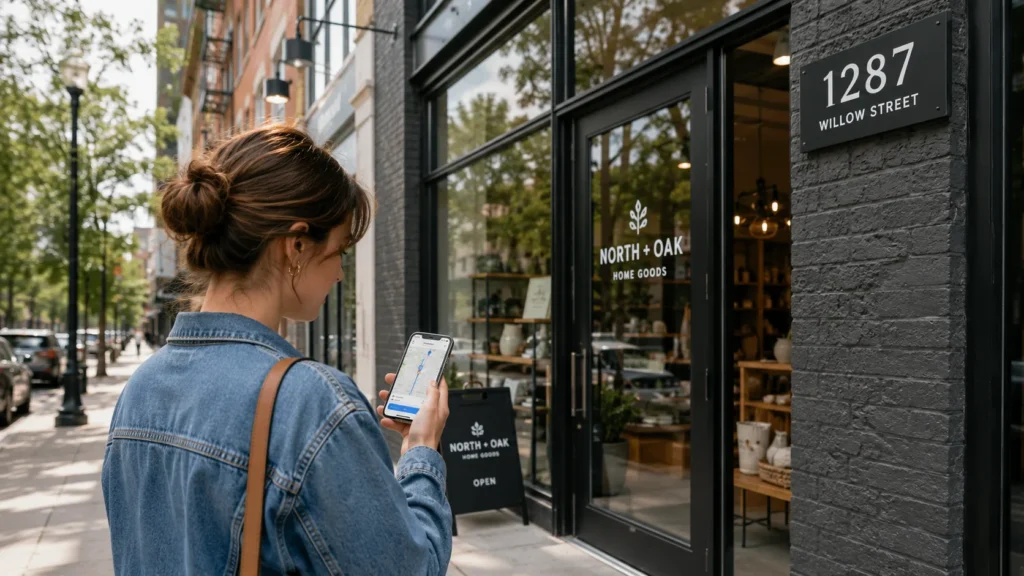
What Is Local SEO for Shopify and Why Does It Matter for Physical Stores? Local SEO for Shopify is the practice of optimising your store so it appears in location-based searches such as “shoe store near me” or “gift shop in Chandigarh,” rather than only competing nationally or globally for product keywords. For any Shopify merchant with a storefront, showroom, or warehouse customers visit, this matters because close to 46% of all Google searches now carry local intent, and 76% of people who run a local search visit or call a business within 24 hours. Standard Shopify SEO focuses on ranking product and collection pages nationally. Local SEO adds a second, geographic layer: your Google Business Profile, your NAP consistency, your location pages, and your local reviews. Both matter together. If you rely on organic product SEO alone, you are invisible in the Local Pack and Google Maps, which is where a large share of nearby, high-intent shoppers actually look first. At RankMyShopify, we have worked exclusively with Shopify store owners since 2009, and local visibility gaps are one of the most common issues we uncover during a Shopify SEO audit. A jewellery brand with three showrooms in India and a single generic “Contact Us” page, for example, is effectively invisible for “jewellery shop near me” searches in any of those three cities, no matter how well its product pages rank nationally. Does Shopify Support Local SEO Out of the Box? No. Shopify’s theme architecture is built for pure ecommerce, meaning global inventory and digital checkout, and it has no native field for a business address, no default LocalBusiness schema output, and no built-in integration with Google Business Profile. Every element of local SEO on Shopify has to be added manually. This is not a platform flaw so much as a configuration gap. Shopify gives you customisable URLs, meta tags, automatic sitemaps, and mobile-responsive themes as a foundation, all of which support local SEO once the local-specific layer is added on top. The gap between a default Shopify store and a properly configured one is larger than most merchants expect, but closing it does not require moving off Shopify. What you need to add manually includes: NAP details in your theme footer and a dedicated Contact or Location page LocalBusiness schema markup in JSON-LD format on your homepage and each location page A verified Google Business Profile for every physical location Dedicated, unique, indexable pages for each store (not a single JavaScript location selector) Consistent citations across directories such as Google, Bing Places, and relevant local listing sites How Do You Set Up Google Business Profile for a Shopify Store? You set up Google Business Profile by claiming your listing at business.google.com, entering your business name, category, exact address (or service area), phone number, and website URL, then verifying it through Google’s confirmation process. A complete, accurate Google Business Profile earns roughly seven times more clicks than an incomplete one, and the average optimised profile generates around 59 actions a month, including website clicks, direction requests, and phone calls. To get the most from your profile: Choose the most specific business category available, rather than a broad generic one Add real photos of the storefront, products, and team, since profiles with 10 or more photos see meaningfully more customer actions Keep business hours current, especially around holidays Post updates or offers regularly, since profiles with consistent posting activity tend to rank higher in the Local Pack Respond to every review within a few hours where possible, since faster response times correlate with higher engagement and conversion If you run multiple locations, each one needs its own separate Google Business Profile linked to its own dedicated page on your Shopify store, not a single shared listing. How Do You Add LocalBusiness Schema to Shopify? You add LocalBusiness schema to Shopify by inserting a JSON-LD script into your theme.liquid file or a specific location page template, describing your business name, address, phone number, opening hours, and geographic coordinates in a format search engines can read directly. A basic example for a single-location Shopify store looks like this: { “@context”: “https://schema.org”, “@type”: “LocalBusiness”, “name”: “Your Store Name”, “image”: “https://yourstore.com/logo.jpg”, “address”: { “@type”: “PostalAddress”, “streetAddress”: “123 Main Street”, “addressLocality”: “Chandigarh”, “addressRegion”: “Punjab”, “postalCode”: “160001”, “addressCountry”: “IN” }, “telephone”: “+91-9888923755”, “url”: “https://yourstore.com”, “openingHours”: “Mo-Sa 10:00-19:00” } For multi-location merchants, each store page should carry its own LocalBusiness block with that location’s own address, phone number, and hours, rather than one schema block repeated across every page. Getting this schema validated correctly (Google’s Rich Results Test is the standard way to check it) is one of the most common gaps we find during an audit. How Do You Keep NAP Consistent Across Shopify and Directories? NAP consistency means your business name, address, and phone number appear identically, down to abbreviations and punctuation, across your Shopify store, your Google Business Profile, and every directory or citation site where your business is listed. This sounds simple but is where most merchants lose local ranking strength. “123 Main St.” on Google and “123 Main Street” on your website is technically the same address to a human, but it reads as an inconsistency signal to Google’s algorithms. To fix this: Pick one exact format for your address and phone number and use it everywhere, without variation Add this NAP block to your Shopify theme footer so it appears sitewide Audit every directory listing, social profile, and citation site for matching details Update old citations whenever you move location or change your phone number Consistent NAP data across platforms is consistently cited as one of the stronger local ranking factors, alongside review volume and Google Business Profile completeness. How Do You Build Location Pages for Multiple Shopify Stores? You build location pages by creating one dedicated, indexable page per physical store using Shopify’s Pages feature, each with unique content covering that store’s address, hours, parking information, staff, and locally relevant details, rather than one shared page with a location switcher.
Shopify SEO vs WordPress SEO: Which Platform Wins for Organic Traffic?
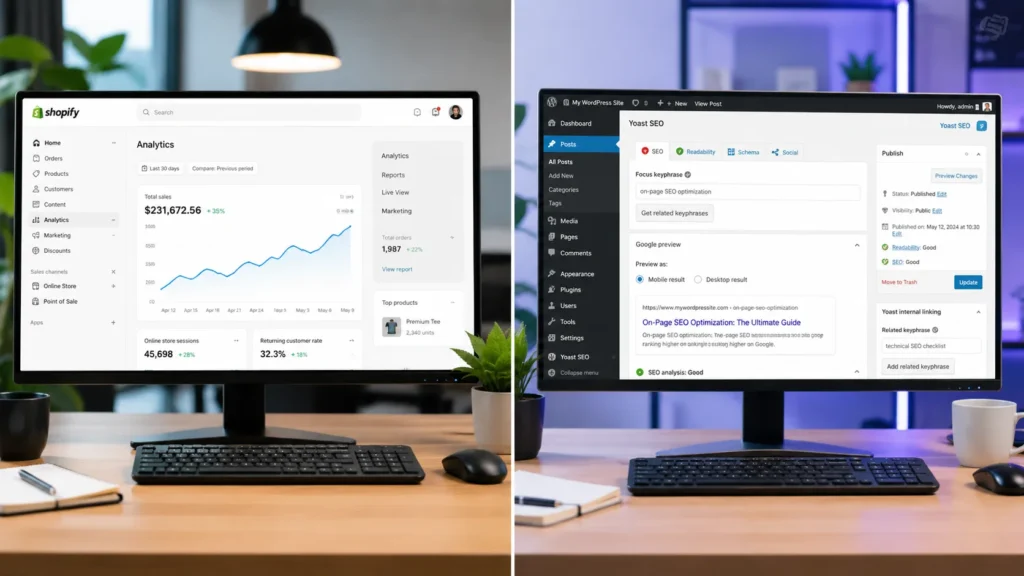
Shopify SEO handles technical basics like SSL, sitemaps, and canonical tags automatically, making it faster to get right for ecommerce. WordPress SEO gives you more control over URLs, schema, and content structure, which suits content-heavy sites. For most Shopify store owners, the platform is not the bottleneck. Skilled execution, clean site architecture, and consistent content are what actually drive organic traffic growth. Shopify SEO vs WordPress: What Is the Real Difference? The real difference is not ranking power, it is how much manual work sits on your plate. Shopify takes a done-for-you approach to technical SEO, while WordPress hands you a blank canvas that needs building out. As of 2026, global ecommerce sales are set to reach close to 6.88 trillion US dollars, and Shopify alone closed 2025 with 378.4 billion US dollars in gross merchandise volume, so the stakes for getting your platform’s SEO right have never been higher. Shopify is built as a commerce-first platform. It manages hosting, SSL certificates, XML sitemaps, mobile responsiveness, and canonical tags automatically, so a new Shopify store starts with a reasonably strong technical foundation without any setup. WordPress, when paired with WooCommerce for selling, is content-first. It gives store owners full control over permalinks, custom post types, and schema markup, but every one of those technical SEO elements has to be configured, either manually or through plugins like Yoast or Rank Math. Google itself does not favour either content management system. Rankings come down to content quality, site authority, technical health, and user experience, all of which can be built well or badly on either platform. How Does Shopify Handle SEO Out of the Box? Shopify handles most foundational technical SEO automatically the moment you launch a store. SSL, XML sitemaps, canonical tags, and mobile-responsive themes are switched on by default, which removes a huge chunk of setup work compared to a fresh WordPress install. Shopify SEO Feature Handled Automatically? Notes SSL Certificate Yes Included on every plan XML Sitemap Yes Generated and updated automatically Canonical Tags Yes Applied by default across product and collection pages Mobile Responsiveness Yes Built into most Shopify themes Page Speed and CDN Yes Hosted on Shopify’s own infrastructure Meta Titles and Descriptions Manual Editable per page, some AI-assisted suggestions available Schema Markup Partial Basic schema included, advanced schema needs apps URL Structure Fixed Cannot remove /products/ or /collections/ subdirectories For a Shopify fashion store in India carrying 5,000 products with zero technical SEO work done, a full Shopify SEO audit from RankMyShopify would typically uncover missing alt text across hundreds of product images, thin or duplicate collection descriptions, and unoptimised meta titles, none of which Shopify fixes automatically. Our Shopify SEO audit service is built specifically to close that remaining 20 percent that Shopify leaves in the merchant’s hands. How Does WordPress Handle SEO for Ecommerce Stores? WordPress hands you complete control over every SEO element, but none of it is automated. You choose the host, the theme, the plugins, and every technical setting yourself, which is exactly why WordPress remains the CMS of choice for content-heavy sites. WordPress currently powers close to 42 percent of all websites globally, and its open-source ecosystem includes tens of thousands of themes and SEO plugins. For ecommerce specifically, WooCommerce is the plugin most WordPress stores rely on to add cart, checkout, and product management functionality. Once installed, plugins like Yoast SEO or Rank Math let you customise permalinks, add advanced schema, control breadcrumb structures, and fine-tune meta data down to the individual page. The trade-off is maintenance. Every additional plugin is another piece of software that needs updates, and plugin conflicts are a common complaint among WordPress store owners on forums like the Shopify Community and r/SEO. Site speed, security patching, and hosting configuration all fall on the store owner or their developer, and a poorly maintained WordPress store can end up with worse technical SEO than a well-built Shopify store despite having more theoretical control. Shopify vs WordPress SEO: Head to Head Comparison Neither platform wins outright. The better choice depends on how much technical involvement your team wants and how content-heavy your ecommerce strategy is. Factor Shopify WordPress Setup Speed Fast, ready to sell in hours Slower, needs theme and plugin setup Technical SEO Defaults Strong, handled automatically Depends entirely on configuration URL Control Limited, fixed subdirectories Full control over permalinks Schema Markup Basic built in, advanced needs apps Fully customisable via plugins Content and Blogging Functional but commerce-first Best-in-class content management Maintenance Burden Low, hosted and managed High, self-managed hosting and plugins Best Suited For Ecommerce-first brands wanting speed Content-heavy brands wanting control Which Platform Is Better for Content Marketing and Blogging? WordPress is the stronger platform for blogging and content marketing. It was originally built as a blogging tool before evolving into a full content management system, and that heritage still shows in its category management, revision history, and content taxonomy features. Shopify’s blogging engine is functional, covering the essentials like tags, featured images, and basic categorisation, but it exists as a supporting feature rather than the platform’s core focus. If your Shopify SEO strategy leans heavily on long-form content, topic clusters, and building topical authority through a large blog, WordPress gives you more room to structure that content deeply. Many Shopify store owners solve this by running a strong on-site blog on Shopify itself, supported by tighter internal linking between blog posts and collection pages, which narrows the content gap significantly without needing a second platform. What Are the Technical SEO Limitations of Shopify? Shopify’s main technical SEO limitation is its fixed URL structure. Every product page sits under /products/ and every collection page under /collections/, and store owners cannot remove or rename these subdirectories, unlike WordPress where permalinks are fully customisable. Beyond URL structure, advanced schema markup, granular sitemap customisation, and some deeper technical tweaks require third-party Shopify apps rather than native settings. This is not usually a blocker for ranking well, since Shopify Markets and the wider Shopify app ecosystem cover
Shopify Blog SEO: How to Write Content That Ranks and Drives Sales
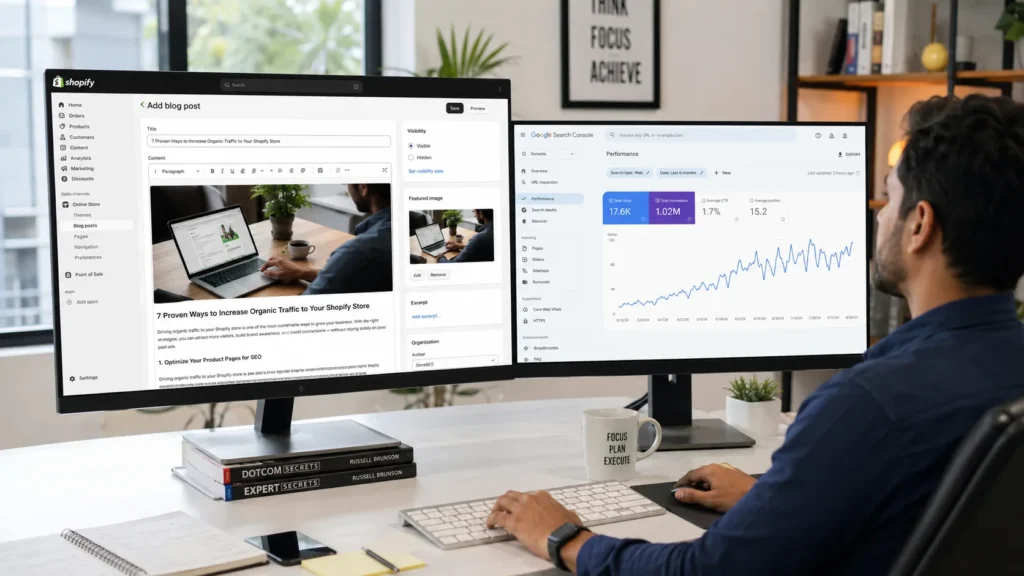
What Is Shopify Blog SEO and Why Does It Matter? Shopify blog SEO means writing and structuring blog content so search engines, AI Overviews, and answer engines can find it, understand it, and rank it for the terms your customers actually search. Your store already has product pages and collection pages, but neither of those page types can rank for the research-stage questions shoppers ask before they buy. Product pages target transactional searches like “buy waterproof hiking boots.” Collection pages target commercial-investigation searches like “best waterproof hiking boots for winter.” Blog posts are the only page type on your Shopify store built to rank for informational searches like “how to waterproof leather boots” or “what to look for in hiking boots for wide feet.” Every one of those searchers is a future customer, even if they are not ready to buy today. This matters more in 2026 than it did five years ago. Ecommerce now makes up a growing share of global retail sales, and platforms like Shopify continue to expand their footprint across fashion, beauty, home and garden, and fitness categories worldwide. As paid advertising costs climb, blog content is one of the few channels that keeps compounding after you publish it. At RankMyShopify, we have watched this shift firsthand since 2009: stores that invest in structured blog SEO build a traffic asset that ads simply cannot replicate. How Do You Find Blog Topics Shopify Customers Are Actually Searching For? You find winning blog topics by starting with keyword research, not personal intuition. Open a keyword tool such as Google Keyword Planner, Ahrefs, or Semrush and search your product category as a broad seed term, then drill down into the long-tail questions people type into Google. A reliable three-step process: Start broad. Search your core product category (for example, “ceramic mugs”) and note the related terms your keyword tool surfaces. Mine Google’s “People Also Ask” boxes. These questions come directly from real searches and make excellent H2 or H3 headings. Check Reddit and community forums. Communities like r/Shopify, r/ecommerce, and the Shopify Community forum surface the exact language, complaints, and confusions real store owners and shoppers use. That voice-of-customer phrasing often outperforms formal keyword-tool suggestions because it matches how people actually search. Before committing to a topic, ask two questions: can you provide genuine value on this subject, and if you ranked for it, would it actually drive a sale, an email signup, or brand trust? If the answer to either is no, pick a different topic. Each post should target one primary keyword, supported by two or three related terms that flesh out the outline. What Is the Best Structure for a Shopify Blog Post That Ranks? The best-structured Shopify blog post opens with a direct answer, uses a clear heading hierarchy, and answers the implied question at the start of every section. This structure is what Google, Perplexity, and AI Overviews extract when deciding what to show searchers. Structure every post like this: H1: Your exact title, including the primary keyword Opening paragraph (50 to 60 words): A direct, standalone answer to the core question, written so it can be lifted straight into an AI Overview or featured snippet Quick Summary box: Three to five bullet points restating the key takeaways H2 sections: Each built around a secondary keyword or a PAA question, opening with a one or two sentence direct answer before expanding into detail H3 subsections: Used for supporting questions within each H2 Lists and tables: Numbered lists for steps, bullet lists for features or benefits, and at least one comparison or reference table FAQ section: A minimum of five question-and-answer pairs near the end, marked up with FAQ schema This “answer-first” style matters because AI models and featured snippets tend to lift the first clear, complete sentence that follows a heading. If your first sentence is throat-clearing filler, you lose that placement to a competitor whose first sentence is a real answer. How Should You Optimise On-Page SEO Elements for Shopify Blog Posts? You optimise on-page elements by placing your primary keyword in the title, URL, meta description, first 100 words, at least one heading, and one image alt tag, while keeping the language natural throughout. Shopify makes most of this easy to edit directly inside the blog post editor under “Edit website SEO.” Key on-page checkpoints for every post: SEO Element Best Practice Title tag Primary keyword near the start, under 60 characters Meta description 150 to 160 characters, includes keyword and a soft call to action URL slug Short, hyphenated, no stop words, keyword-focused Image alt text Descriptive, keyword-relevant, under 125 characters Heading hierarchy One H1, logical H2s and H3s, no skipped levels Keyword density 1.0 to 1.5 percent, natural placement, no stuffing Google’s algorithms understand context and synonyms well enough that keyword stuffing does more harm than good. Use your primary keyword naturally, then lean on related terms and synonyms to cover the topic comprehensively rather than repeating the exact phrase in every sentence. How Do You Link Shopify Blog Posts to Product and Collection Pages Without Looking Salesy? You link blog content to commercial pages by including two to five contextual links per post, using descriptive anchor text instead of “click here,” and matching each link to a natural moment in the content rather than forcing it in. A good rule of thumb is one link to a relevant product page, one to a collection page, and one to another blog post on your site. For example, a post about “how to style a leather tote for work” might link the phrase “our collection of structured leather totes” to the matching collection page, and reference “full-grain leather” with a link to a related care-guide post. This is the step that most Shopify stores skip, and it is costly: a store can build thousands of monthly blog visitors and still generate almost no attributable revenue if none of that traffic has a clear path to a product page. Internal linking
How to Build Backlinks for Your Shopify Store (Authority Link Building Guide)

What Is Shopify Link Building and Why Does It Matter? Shopify link building is the process of earning backlinks from other websites that point to your Shopify store, signalling to Google that your content and products are trustworthy and worth referencing. Backlinks remain one of the strongest ranking signals in Google’s algorithm, and the gap between top-ranking pages and the rest of the results is significant. Research shows the page ranking first on Google averages roughly 3.8 times more backlinks than pages ranking in positions two through ten, which means a thin backlink profile is often the real reason a well-optimised Shopify store still struggles to break into page one. At RankMyShopify, we have worked exclusively with Shopify merchants since 2009, and link building consistently separates stores that plateau from stores that compound their organic growth year over year. With over 1 million Shopify stores now competing for visibility, a deliberate link acquisition strategy is no longer optional for stores serious about organic revenue. Why Do Shopify Stores Struggle to Earn Backlinks Naturally? Shopify stores struggle to earn natural backlinks because product and collection pages are transactional by nature, and nobody links to a product listing the way they link to a useful guide or original research. As one ecommerce SEO resource puts it, product pages rarely attract natural backlinks because nobody links to a product listing the way they link to informative content. This is a structural challenge for every Shopify store, not a sign that something is wrong with your site. The solution is to build informational assets, such as buying guides, comparison content, and original research, that earn links naturally, then route that authority to your money pages through internal linking. This is also why Shopify’s platform limitations matter here: rigid URL structures and standardised templates make on-page differentiation harder, so a strong backlink profile often becomes the clearest competitive edge between two stores targeting the same keywords. How Many Backlinks Does a Shopify Store Need to Rank? There is no fixed number of backlinks required to rank, because relevance and authority matter more than raw volume. A Shopify store with fifty highly relevant backlinks from trustworthy domains will typically outperform a competitor with hundreds of low-quality or irrelevant links. Instead of chasing a target number, focus on the quality, relevance, and topical fit of each link relative to your store’s niche. What Link Building Tactics Actually Work for Shopify Stores in 2026? The tactics that work in 2026 combine foundational link building, content-driven assets, and relationship-based outreach, while avoiding anything that resembles a paid scheme or link network. Below are the methods we recommend most often to our clients across India, the USA, the UK, Australia, and Canada. 1. Build Foundational Links First Start with directory listings relevant to your niche, supplier and manufacturer pages, and industry association memberships. These links are easy to secure and establish a baseline of trust before you move into outreach-heavy tactics. 2. Create Linkable Content Assets Original research, comprehensive buying guides, and free tools give other websites a genuine reason to reference your domain. Original, data-driven content can earn five to ten times more backlinks per piece compared to standard how-to blog posts, because journalists and bloggers need fresh data to cite. A simple example: surveying your own customers or analysing anonymised sales trends to publish something like “2026 State of [Your Niche]: Survey of 1,000 Shoppers” gives outlets in your industry a concrete reason to link back. 3. Pursue Digital PR Campaigns Digital PR has overtaken guest posting as the highest-ROI tactic for mid-size ecommerce sites, with one piece of data-driven press coverage often outperforming ten average guest posts. Industry data puts the average ROI of digital PR campaigns at around 312 percent, ahead of most traditional link building approaches. The trade-off is effort: digital PR requires a genuine story, a relevant journalist list, and patience for coverage to land. 4. Use Broken Link Building Broken link building involves finding dead links on relevant resource pages and pitching your content as the replacement. Success rates typically sit in the five to fifteen percent range, lower than guest posting, but the links earned tend to sit on established, high-authority resource pages, which makes each successful placement valuable. 5. Respond to Journalist Queries (HARO and Connectively) Responding to journalist requests through platforms like Connectively (formerly HARO) can earn editorial mentions and high-authority press links, particularly when you can offer a genuine expert perspective or original data point relevant to the request. 6. Send Products for Honest Reviews Gifting products to relevant bloggers and influencers in exchange for honest reviews remains an efficient tactic for newer stores. For India-based merchants, the cost-to-value ratio can be especially strong, since the cost of a single product is often small relative to the value of a single high-quality backlink. 7. Build Supplier and Partner Links If you stock recognised brands, ask them to link to your store from their official “Where to Buy” or stockist page. These links are typically easy to secure since the brand benefits from showing where customers can purchase their products. What Should You Avoid in 2026? Avoid paid link schemes, private blog networks, and mass guest posting to unrelated “write for us” pages. Google’s Spam Brain system has been upgraded to detect mass guest posting, PBN links, and paid link schemes faster and penalise them harder than in previous years, and the risk of a manual penalty far outweighs any short-term gain. Keep exact-match anchor text under roughly ten percent of your total anchor profile, and aim for a natural mix that includes a healthy share of nofollow links rather than a profile that looks artificially manipulated. For example, if you run a Shopify fashion store in India with 5,000 products and zero deliberate link building in place, a full Shopify SEO audit from RankMyShopify would typically uncover missed supplier link opportunities, thin or duplicate collection content limiting linkability, and no current digital PR or HARO activity, all of